Mobile Services
If you need information when you’re on the go, use your mobile phone to access directions, find out when your bus will arrive, and receive updates for real-time service changes.
TransLink Wi-Fi
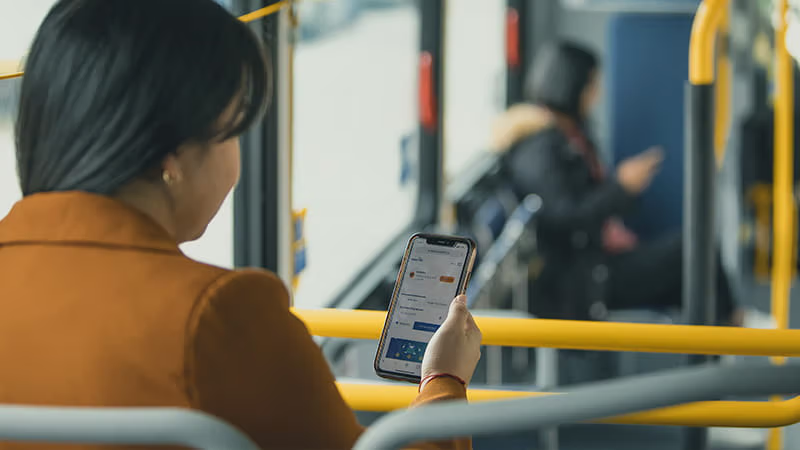
Free public Wi-Fi on transit enhances people’s trips, making it easier to use their transit time for work, leisure, or connecting with family, while helping customers reduce data costs. Through the Customer Experience Action Plan, TransLink and Rogers Communications are installing free public Wi-Fi on select transit vehicles, available to anyone with a mobile device. Free Wi-Fi is available to all riders on over 200 buses, many SkyTrain cars, and at some stations and bus exchanges. Find ‘TransLinkWiFi’ on your mobile device and connect to the internet during your next transit commute.
Frequently Asked Questions
How do I connect to Wi-Fi?
Once you are in a Wi-Fi coverage zone or area:
-
On the device, go to Settings/Wi-Fi.
-
Turn on Wi-Fi. The device will automatically search for available Wi-Fi networks.
-
Select “TransLinkWiFi” SSID from the list of available networks.
-
Wi-Fi connect page will pop up.
-
Accept the “Terms & Conditions”.
-
Click “Connect”.
-
Your device will be connected to the internet and redirected to TransLink’s landing page.
Where can I access TransLink Wi-Fi?
TransLink Wi-Fi is available:
-
At both SeaBus terminals, Edmonds Station, New Westminster Station, Carvolth Exchange, and Langley Centre Exchange.
-
On over 200 buses, including those that run along all six RapidBus routes and some other articulated buses.
-
On many of our SkyTrain cars.
-
Onboard most SeaBus vessels.
Please check out the current map of Wi-Fi-enable stations below.
What devices can I use?
TransLink Wi-Fi is designed for use on most mobile devices such as smartphones, tablets, and laptops.
I am having trouble connecting to TransLink Wi-Fi, what should I do?
While within a Wi-Fi coverage zone, verify that your device has connected to the ‘TransLinkWiFi’ network. If not, please complete the connection process above. Remember to read and accept the Terms & Conditions.
If you have already connected to the ‘TransLinkWiFi’ network and your Wi-Fi is still not working, please disconnect from the network, wait a few minutes, and try again. If you continue to experience trouble connecting, there may be a technical issue or service interruption.
For assistance or to report a technical issue, contact the TransLink Customer Information team at 604-953-3333, use our Live Chat or via X (formerly Twitter) @TransLink. Technical issues may require maintenance, so please be prepared to provide the customer service representative with the bus or train number, route, time and nature of the issue.
While we do our best to have TransLink’s Wi-Fi service available, there may be times when service is temporarily unavailable. For example, there may be interruptions due to maintenance work, network or equipment failures, third-party service failures, signal strength, or other reasons beyond TransLink’s control. Service is provided on an ‘as is’ and ‘as available’ basis. TransLink does not warrant or guarantee the performance, availability, uninterrupted use, or operation of the service.
I’m connected to ‘TransLinkWiFi’, but the webpage isn’t loading. What do I do?
Once you have connected to the ‘TransLink WiFi’ network you will need to open a browser to accept the Terms & Conditions. In most cases, your device should open the browser automatically. If the webpage is not loading, it may be because your browser's homepage or the site you are navigating to is a secured site (https – like Google or Facebook). Try these steps:
If you have an Android device:
-
Confirm you see the “Your connection is not private” screen
-
Select Advanced
-
Select Proceed to SITENAME (unsafe)
-
You should now be re-directed to the TransLinkWiFi connect page
If you have an Apple/iOS device:
-
Confirm you see the “Safari cannot open the page because it could not establish a secure connection to the server” screen
-
Tap the URL bar at the top of the Safari web browser
-
Go to a Website that is not secured
-
You should now be re-directed to the TransLinkWiFi connect page
What if I am an existing Rogers customer?
TransLink Wi-Fi is powered by Rogers. Customers will have access to “Rogers Guest” and “TransLink Wi-Fi” at Wi-Fi-enabled SkyTrain stations and bus exchanges (please refer to the map provided below).
Looking for Wi-Fi while on a bus or train? You can access Wi-Fi via the ‘TransLinkWiFi’ SSID on Wi-Fi-enabled vehicles. Please visit Rogers.com for more information on Rogers Wi-Fi and other Rogers services.
Wi-Fi on SeaBus
Rogers Wi-Fi is available to all riders on most SeaBus vessels and at both SeaBus terminals. Use “Rogers Guest” to sign into the Rogers Guest network for free Wi-Fi.
Plan your Route on a Mobile Device
You can use your mobile phone to help plan your route while you're on the go!
Transit app
TransLink has partnered with Transit app, a leading mobile app available on the iOS App Store and Google Play, to deliver better real-time information, service alerts, and trip planning for Metro Vancouver transit users.
Through Transit app, customers can plan their journeys with advanced tools, view precise real‑time route information, receive tailored service alerts, and provide instant feedback.
Metro Vancouver transit riders automatically receive a free upgrade to Transit Royale, the premium subscription in the Transit app, courtesy of TransLink.
For more information, visit our Transit app page.
Google Maps
Download Google Maps to your smartphone to use Google Transit to get route and transit information, phone numbers, and figure out where you are, with or without GPS.
Trip Planner
Plan your trip with TransLink's Trip Planner, view route schedules, get real-time bus and train departures, and transit alerts.
Trip Planner shows you route options, trip duration, transfers, walking distance, and fare pricing.
Try the TransLink Trip Planner.
Trip Planner FAQ
Why does the information vary between Google Trip Planner and TransLink's Trip Planner?
Google and the TransLink Trip Planner use the data in a different way, this can result in slightly different results.
Why do you offer both Google Trip Planner and TransLink Trip Planner?
We want to offer choices for your trip planning. The upgrade to TransLink Trip Planner is a new product and user experience. We're giving access to Google because it's familiar. However, be sure to try out and give feedback on the TransLink Trip Planner and Next Bus.
Are the results for the bus and train departures the same as Next Bus?
Both Trip Planner and Next Bus options use the same data, but you may see slightly different results from the way each application uses the data.
Can I save a bus route or stop to my favourites using the TransLink Trip Planner?
Unfortunately, favourites is not available on the TransLink Trip Planner.
Limitations
Re-Routes and Disruptions
Planned transit service disruptions, re-routes due to construction, and special events aren't always available in the TransLink Trip Planner. For the most up-to-date service disruption details, visit transit alerts.
Express Buses (B-Line)
B-Line and RapidBuses will generally receive location updates less frequently than regular buses, so make sure to give yourself extra time if you’re catching an express bus.
Next Bus
Use Next Bus to find real-time and scheduled transit information for stops and bus routes.
On-Demand Bike Parking
On-demand bike lockers and racks are easy and convenient to use, with keyless entry and payment controlled through your smartphone!
How to Use On-Demand Bike Parking
To use on-demand bike lockers and racks, download the free Bikeep app for your Android smartphone or iPhone through Google Play or the App Store.
To lock your bike in an on-demand bike locker:
-
Launch the Bikeep app and select your location from the map.
-
Once you’ve arrived at the lockers, select a locker that is available (available lockers are flashing green).
-
Scan the QR code on the locker, or, choose a locker from the list on the app.
-
If you have not previously done so, you will be prompted to add your payment details.
-
Open the locker, park your bike, and lock the door.
To use on-demand bike racks:
-
Launch the Bikeep app and select your location from the map.
-
Once you’ve arrived at the bike racks, select a rack that is available (available bike racks are flashing green).
-
Scan the QR code on the rack, or, choose a rack from the list on the app.
-
If you have not previously done so, you will be prompted to add your payment details.
-
Open the locking bar, park your bike, and close the locking bar.
Rates & Payment
No registration fee or deposit required!
On-demand bike lockers
-
Offers the flexibility of two usage options to suit your needs:
-
Pay-as-you-go offers a $0.10 per hour rate, to a maximum charge of $1 per calendar day. Pay-as-you-go lockers are first come, first served.
-
Monthly subscription offers unlimited monthly access to reserved lockers, by location, for $10 per month. Users have guaranteed access to subscription-only lockers, though are not guaranteed the same locker each trip.
On-demand bike racks
-
free to use for up to 24 hours, followed by a $1 charge, and an additional $1 for every 24 hours your bike is parked.
Questions or concerns? Call our Customer Information team at 604.953.3333.
Transit Alerts
Stay up-to-date about disruptions, updates, or changes to the transit services you take by signing up for Transit Alerts. Depending on your preference, we’ll send you a text message and/or email whenever your selected transit routes are impacted.
Park and Ride: PayByPhone
You can now pay for parking at our Park and Ride lots with the PayByPhone app. Download the PayByPhone app from the Google Play and iOS App Store, or visit paybyphone.com.
Frequently Asked Questions
What are the benefits of using PayByPhone?
-
No need for cash or coins.
-
Text message reminders before your parking expires.
-
Extend your parking session through your phone.
-
View and print parking receipts online or by email.
-
You can purchase parking from 4 a.m. to 2 a.m. for a single day, multiple days, or one month.
Where can I download the app?
Download the PayByPhone app from the Google Play and iOS App Store, or visit paybyphone.com.
How do I sign up?
You can register for a a PayByPhone account via the mobile app on iOS and Android devices, at paybyphone.com, or by calling 1.877.610.2054. To set up an account you’ll need:
-
Your mobile phone number
-
A valid credit card (VISA, MasterCard, or AMEX)
-
Your licence plate number
How do I add an additional vehicle to my account?
You can add up to nine vehicles within the PayByPhone app by going to the "Vehicle Management" page under "Settings".
How does parking enforcement know I’ve paid for parking?
When you use PayByPhone, your licence plate and parking time are automatically displayed on the device used by the parking enforcement team.
PayByPhone users do not need to display a receipt or parking slip on their car.
When will I see the transactions on my credit card statement?
The amount of time that elapses before it shows up on your account will vary depending on your credit card provider.
Can I get a receipt?
Preview your parking transactions through the app or login to your account at paybyphone.com/receipts to download your receipts.
For additional app and payment support, please visit the PayByPhone Help Centre.


